
How it works
How it works: what happens to your site when I manage it
This is what happens to your site when I manage it, from an ordinary Tuesday to a WordPress update that causes problems. My own management system does most of the work. I make the decisions.
In brief
- Before an update, my system makes a copy. Then it checks your site. If something goes wrong, it puts that copy back automatically.
- I let a new plugin or theme version wait three days. A security update for a hole that's being actively exploited doesn't wait that long.
- Every five minutes, I check that your site is reachable. If a new security hole turns up in a plugin you use, I usually see it within minutes. I read the error log every half hour.
- Every day, there's a backup of your whole site. Every day of the last two weeks is kept, then a weekly version going back a month and a monthly one going back six months.
- I do big updates by hand. When in doubt, I decide, not my system.
What happens during an update
This is how an update goes through my system, step by step. It works exactly the same in all three packages.
Beforehand
My system checks that your site is reachable, that nothing else is already in progress, and that the new version works with your version of WordPress. If something's off, the update doesn't start.
-
Copy
Then my system makes a copy of exactly the part that changes, plus your database (snapshot). That way, a way back is ready for seven days.
-
Update
Only then does it run the update, through WordPress's own update engine, for paid plugins too. After an update of WooCommerce or Elementor, it waits until the database has been updated as well before it checks anything.
-
Clear cache
Next, it clears the cache, so visitors and the check see the new version right away. That works with my server's cache (AccelerateWP) and with WP Rocket.
-
Check
My system runs a quick check (smoke test) of your homepage and a few pages I've chosen in advance: do they load, are they free of error messages, and have no new serious errors appeared? For an online store, it also puts a product in the cart and opens the checkout page, without ordering anything.
If something goes wrong
If the update or the check fails, a fixed rule puts the copy back: first the files, then the database (rollback). If new orders came in on your online store since the copy, only the files go back, so those orders stay in place.
- Limit
- The check looks at the pages I've chosen, not at every page. So it won't see a broken form on a page that isn't on that list. If you notice something like that after an update, let me know. If needed, I'll put back the copy from before the update.
-
Customer steps
For an online store, a real browser walks through a customer's steps up to the order button.
Play the routeClose the route
A browser opens the homepage, picks a product, puts it in the cart and fills in the checkout page, up to the Place order button. That's where it stops. If something goes wrong
If the route fails, I get a notification.
-
Follow-up check
Half an hour later, my system checks once more that your site is reachable and whether there are new serious errors, for problems that only show up with real visitors.
If something goes wrong
If it finds something then, nothing rolls back by itself: I get an alarm and decide myself.
Your site over 24 hours
Even on a day without updates, I look at your site at set times.
| When | What happens | If something's off |
|---|---|---|
| Every 5 minutes | I check from the outside that your site is reachable. | Alarm, day and night |
| Every half hour | I read the error log and check that your site's scheduled tasks are still running and whether WordPress itself reports anything critical. For an online store, I count the orders that get stuck. | In my overview the next morning |
| 4 times a day | I make a list of everything that runs on your site, with version numbers. | On your site's timeline |
| When a new security hole appears | I compare it with the versions on your site, usually within minutes. | Alarm if it's serious |
| Every night | I compare the files of WordPress and your free plugins with the originals at wordpress.org. I also check your hosting account, such as the disk space. | In my overview the next morning |
| Between 3 and 5 am | The small updates that have waited three days, with a copy beforehand and a check afterward. | |
| 6.30 am | Your site sends a test email and I check that it arrives. | In my overview the next morning |
| 7 am | I start my day with one overview of everything on all my sites that needs attention. | |
| On a set schedule | For an online store, a real browser walks through a customer's steps up to the order button, if you want. | Notification |
Anything urgent, like a site that can't be reached or a serious security hole, goes to my phone as an alarm, day and night. Everything else is in my overview the next morning, in order of urgency. So if your site goes down or a serious security hole affects your plugins, I usually know before you do.
What happens if my site can't be reached?
Every five minutes, I visit your site from the outside. If it can't be reached twice in a row, an alarm goes to my phone, day and night.
If something goes wrong anyway
Even with all those checks, something can go wrong. Then I have three safety nets, from quick to deep.
The copy from just before the update
My system puts it back automatically if the update or the check fails. If you notice something wrong later anyway, I'll put it back at your request, up to seven days after the update. On an online store, I can see beforehand whether orders have come in since.
The daily backups
They go back up to six months, for your whole site: every day for the first two weeks, then weekly and monthly. From them, I restore individual files or your whole site, even if there was no update before the problem. Restoring a database from that backup is something I do by hand, following a fixed procedure.
The emergency entrance for a white screen
If a plugin crashes your whole site, I can skip that one plugin before WordPress even loads it, even if you can't get into the dashboard anymore. Then I turn it off properly or roll back the update. This works for plugins, not for a crashing theme or a broken database.
Recovery after an update through my system costs you nothing extra. Want to know what else the packages include? See outsource WordPress maintenance.
What rolling back looks like
To show what rolling back really looks like, I made an update fail on purpose on my own test site. My system first made a copy, ran the update, saw the check afterward fail, and put the copy back automatically. That's a site of mine, not a client site.
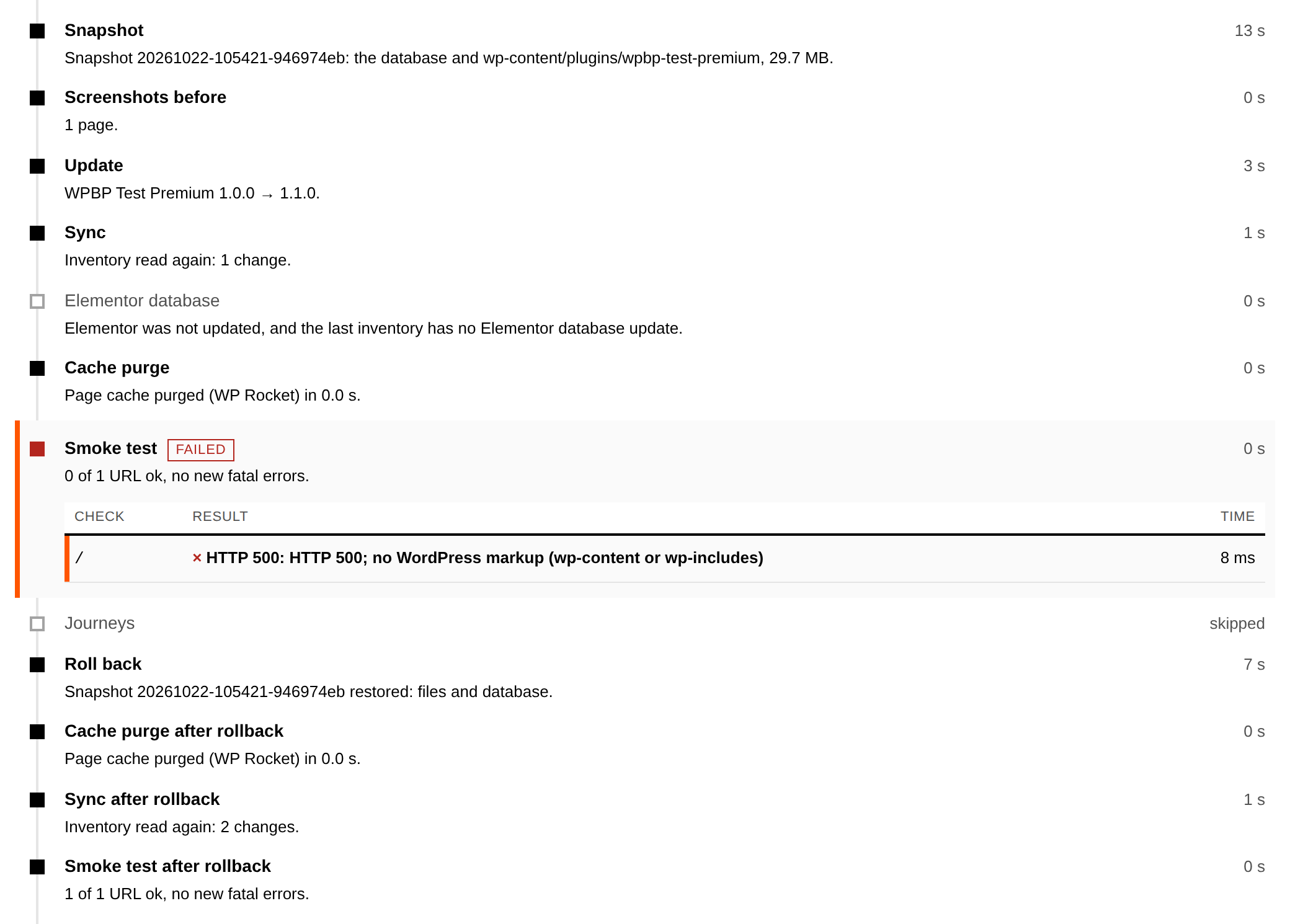
My own test site, October 22, 2026. This screen is from my system; clients don't log in there.
What I see and what you notice
My system has one user: me. I see my morning overview, the alarms, and your site's timeline, with updates, changes, and notifications by date and time.
You usually don't notice any of it.
You hear from me when I need something from you: a license, a plugin that needs replacing, or a serious security hole without an update.
If you ask what happened, I look up the exact details.
You don't get reports and you don't have to log in anywhere.
What it doesn't do
- The check after an update looks at your homepage and a few pages I've chosen, not at every page.
- The content check is a comparison, not a virus scanner, and doesn't apply to WordPress itself or a plugin that's installed from a zip file.
- Shielding a known security hole isn't fixing it: the update still follows.
- A changed file is a signal, not proof: I then look at it myself.
My own system, my own server
I built that management system myself, because there were two things I no longer wanted to do: go through every site by hand, and wait and see after an update whether everything still worked. For that, there's one small, signed piece of software from me on your site. It only talks to my system and has no login account of its own. You'll find more about that in why I built my own management system.
Your site, database, backups, and email live on my own server in the Netherlands. My management system runs on a separate server in Germany.
Why a new version waits three days
I don't install a new plugin or theme version on the day it comes out. It waits three days (72 hours) first. If a version turns out to be faulty during those three days and is withdrawn, your site won't have received it automatically.
There are a few deliberate exceptions:
- If an update closes a security hole that's being actively exploited, or a serious hole that can be reached without logging in, I don't make it wait three days. On an online store, an update like that is installed the next night, because rolling back there can affect orders.
- Minor updates of WordPress itself (the core, not your plugins) don't wait.
- An update that wordpress.org pushes out itself, usually an urgent security update, always goes through.
What this means for you: your site isn't the first to get a new version, but it does get its turn quickly when there's a serious security hole. What waiting three days doesn't catch is a version that's quietly altered later on. That's what the check below is for.
- Waits
- three days (72 hours)
- Sooner
- a security hole that's being actively exploited
- Don't wait
- minor updates of WordPress itself
- Always goes through
- an update that wordpress.org pushes out itself
Checking what's inside an update
Right before installing, I calculate a fingerprint of the update package. I compare it with what wordpress.org lists. For a paid plugin, I compare it with what my other sites received earlier for exactly that version (hash check). If the contents differ, that version doesn't go on, I get a notification, and I look at it myself first.
So an update that someone has tampered with doesn't end up on your site unnoticed. It's a comparison, though, not a virus scanner. The check doesn't apply to WordPress itself or to a plugin that's installed from a zip file. If a paid plugin is on only one of my sites, I have nothing to compare it with: the first version that arrives there then counts as the original.
- Compared with
- what wordpress.org lists
- Paid plugin
- what my other sites received earlier for exactly that version
- Doesn't apply to
- WordPress itself; a plugin that's installed from a zip file
Known security holes: from report to fix
I follow a large public list of known security holes in WordPress, plugins, and themes, and compare it with the exact versions on your site. If a hole is added that affects your site, I usually know within minutes.
If it's serious, an alarm goes to my phone, day and night. Less serious holes are in my overview the next morning. I only know about holes that are on that list, though. Sometimes a hole is only added days after the update.
Usually, the update itself is the fix. It then goes through the steps above like any other update.
With Plus and Pro, an extra layer shields known security holes in plugins until there's an update: WP Guardian, with rules from Patchstack (virtual patching). That only works for holes that have a rule like that. Shielded isn't fixed: the update still follows. Until then, the hole stays on my list. Basic doesn't have that shielding; there, the update itself is the protection.
If there's a serious hole that doesn't have an update yet, I'll discuss with you whether to turn the plugin off or replace it. That never happens automatically.
Separately, Imunify360 secures the server itself, in every package. That's a layer of the hosting, not of my system.
- Known
- usually within minutes
- Serious
- an alarm goes to my phone, day and night
- Plus and Pro
- shielded until there's an update
- Server
- Imunify360, in every package
Error messages I keep an eye on
Every half hour, I read the log where your site keeps track of its errors. The same error becomes one notification for me, with how often it occurs and whether it started right after an update. Usually, I can also see which plugin or theme is causing it. If an error I'd fixed comes back with a new version, it shows up for me again by itself.
I also check whether your site's scheduled tasks are still running (like scheduled posts and outgoing emails) and whether WordPress reports anything critical in its own health check.
What this means for you: if a plugin throws an error that stops your contact form from working, I can see it before a visitor complains about it. But not every error ends up in a log. For example, I don't see an error there that happens before WordPress has loaded.
- The same error
- one notification for me, with how often it occurs and whether it started right after an update
- Also
- whether your site's scheduled tasks are still running; whether WordPress reports anything critical in its own health check
- I don't see
- an error that happens before WordPress has loaded
What I check from the outside and every night
Every five minutes, I visit your site from the outside. If it can't be reached twice in a row, an alarm goes to my phone, day and night. My system runs on a different server than your site, so I also see it when my hosting server itself is down.
I also keep track of whether your certificate (the padlock in the address bar) is renewed on time and whether your disk space is about to run out. If something changes in the settings that determine where your domain name points (DNS), I see that too. And I check that your domain name doesn't expire.
Every night, I compare the files of WordPress and your free plugins with the originals at wordpress.org (checksum). If a file has changed or been added, that can mean someone has tampered with your site. That's a signal, not proof: I then look at it myself. Paid plugins and all themes are left out, because I don't have an original to compare them with.
Four times a day, I make a list of everything that runs on your site. If something changes without me doing it, I see that on your site's timeline. That list also produces signals, like a plugin that hasn't been updated in two years, an administrator account that's been added, or a version of the programming language under WordPress (PHP) that will stop being maintained within six months.
Every day, your site sends a test email and I check that it arrives.
Online stores: a customer's steps
If you have an online store, I set up a fixed route when you start, which a real browser walks through: choose a product, add it to the cart, and fill in the checkout page, up to the order button. It stops there, because I set it up so that nothing gets ordered.
That route runs after every update through my system and, if you want, on a set schedule too, from every 15 minutes to once a week. That way, I also see a broken checkout page when there was no update. If the route fails, I get a notification. Only once a route has proven to be stable do I set it up so that it can make an update roll back.
For an online store, the following also applies:
- I do every WooCommerce update by hand.
- After a WooCommerce update, I wait until the database has been updated before I run the route again.
- Every half hour, I check whether orders stay on "pending payment" for too long. That's often the first sign that a payment integration is broken. I only see numbers and payment methods, no names or amounts. My system never changes an order; I'll discuss with you what needs to happen next.
Did an update just break your site?
Do you see a white screen after an update, a message about a critical error, or a page that no longer works? Then do this, in this order. Stop as soon as your site works again.
Don't update anything else
Don't start an update again. Write down which plugin or theme you updated last.
Turn off that plugin
If you can still get into the WordPress dashboard, you do that under Plugins. If you can't get in, check whether you've received an email from WordPress about a technical issue: it contains a link that lets you log in anyway. If that doesn't work either, rename that plugin's folder in
wp-content/pluginsthrough your hosting package's file manager; WordPress will then skip it. If it was a theme, go straight to step 3.Restore the last backup from before the update
You can usually do that through your hosting package; if that doesn't work, ask your host. If you have an online store, first write down the orders that came in after that backup, because restoring a full backup removes them.
For sites I manage, I do this myself. Want this to stop being your problem from now on? Then I'll take care of the maintenance: book an intro call. Prefer to keep maintaining it yourself? Then first read when maintaining WordPress yourself is fine.
Can't fix it yourself? I can also help you as a one-off, for €95 per hour excl. VAT.
What I do by hand
You've been dismissing a notice about PHP for months.
How I handle it
In my setup, moving to a newer PHP version is a big update. I do it by hand and review it beforehand.
I plan big updates myself, at a time when I'm there to keep an eye on them. To me, big means: a new major version, a switch to a different version of the programming language under WordPress, any WooCommerce update, and a theme update if your theme contains custom work. Those also go through the steps above. Sometimes I make a test copy of your site first.
If I roll out an update across all my sites, it first goes to my own test site, if that plugin is installed there too. Then it moves on one site at a time; the rollout stops at the first error.
When I review an update, screenshots from before and after show me whether something has shifted, like a column or an empty space. That's an aid for my own eyes, not an alarm.
I can't update a paid plugin without a valid license. I'll raise that with you.
How to switch
After the intro call and the quick scan, I move your site to my server. That takes one to three business days, and the whole time, your site stays reachable and your email keeps working. For a day or two, it's best not to change anything on your site. Your site is usually running with me within a week.
Then I connect your site to my system and turn on monitoring and backups. For an online store, I also set up the route for a customer's steps.
All the sites in your package move along, and so does your email; a regular migration costs nothing extra. If it's complicated, say an online store that can't be offline for a moment, we agree up front on how to do it. Moving your existing mailboxes is something we arrange together. You can read what maintenance costs after that in the guide on what this costs, and what you and I put in writing in the guide on what goes in the contract.
"(…) my previous host was slow to respond and never really there for me. Moving my site and hosting to Jorijn should have happened much earlier. The migration was seamless with zero downtime (…)"


What I need from you
- An administrator account on your WordPress site.
- Access to your current hosting account, or a full backup of your site.
- Access to the settings of your domain name (DNS), or the details of the company your domain is registered with.
- A list of your email addresses on that domain.
- The licenses for your paid plugins and your theme.
What to do with your current host
- Check how long your contract still runs and what the notice period is. Many hosts work with annual contracts.
- Cancel your old contract yourself, once your site is running with me.
- Your domain name: it can stay with your current provider, pointed at my name servers, or move to me (a .nl or .com is €19.99 per year excl. VAT).
- Your email: it moves along. Moving your existing mailboxes is something we arrange together.
Will I lose my rankings in Google?
Your domain name and the addresses of your pages stay the same; only the server changes. I don't make promises about rankings.
Frequently asked questions about updates and recovery
Can I have a look in your management system?
No, my system has one user: me. The screenshot on this page is from my own test site. If you ask what happened, I look it up in your site's timeline and tell you.
Do I get a notification when something happens?
No, the notifications come to me. You don't get automatic reports either. If I need something from you, like a license, a plugin that needs replacing, or a decision about a serious security hole without an update, I'll contact you.
How quickly do you notice that my site has been hacked?
I don't give a time for that, because I can't promise one. What I do is watch for signals: every night the comparison of your files with the originals at wordpress.org, four times a day the list of administrators and plugins, every half hour the error log, and Imunify360 on the server. A signal isn't proof. When in doubt, I look myself. If your site needs cleaning up afterward, that costs you nothing extra if it was under my management and the cause wasn't on your side. Otherwise, I charge €95 per hour excl. VAT.
What do you install on my site?
One small, signed piece of software that only talks to my system. It has no login account of its own and can't run code I send it. I update that piece of software carefully too: first on my own test site, with the same check afterward, and back to the previous version if there's an error. If you leave, I remove that piece of software and its key myself; you don't need to do anything.
What if the check misses something?
The check only sees what it checks. If you notice something wrong after an update, let me know. Up to seven days after the update, I put back the copy from before it. After that, I restore files or your whole site from the daily backups, going back up to six months, every day for the first two weeks. Recovery after an update through my system costs you nothing extra.


What does this mean for your site?
Want to know what this looks like for your site? Book an intro call and I'll talk you through where your site stands now and what I would do.